







The Freelang dictionary runs with Windows only (all versions). However, it's possible to run it under Linux or Mac (click here for more information).
The Freelang dictionary is a stand-alone program, it doesn't integrate into other applications like Internet Explorer or Microsoft Word. It is a simple bilingual dictionary, not an automatic text translator. See some screenshots for a better idea.
The dictionary is very easy to install: the program on one hand, and one or several word lists on the other hand, to be installed in the same folder. It is a clean installation, nothing is written in Windows registry. The program doesn't contain any adware or spyware, and no registration is required.
 |
1. Quick guide
The installation process in short: download the program, download the wordlist, then double click on each file to launch the installation. Make sure they both install in the same folder. Then launch the dictionary by using the shortcut that was created in your Start menu (or on the Desktop, if you specified so). If you have any trouble during the installation, or if you are unsure how to proceed, please keep on reading this installation guide.
2. Download
There are two files to download: the program installation file, and a word list (or several word lists) installation file. These files can be deleted after the installation has been completed.
Tips for downloading:
- When you download a file, make sure you know where it goes in your computer, because you will have to find it and double-click on it. If you are unsure, download to the Desktop.
- Before downloading a file, please take note of the file size, so as to make sure that the downloading has completed successfully. Good websites (like this one :-)) always provide the size of the files to download.
- If the download was interrupted, try to download again. But be careful, sometimes the corrupted file is kept in memory (this is a common process, things you load are kept in memory so as to be displayed faster when you load them again) and you just download the incomplete file again. To solve the problem, delete your temporary Internet files, or just be patient before trying to download again.
3. Installation
Freelang dictionary is made of two components: the program, and at least one word list. You can install as many word lists as you want, with only one installation of the program. But the program and all the word lists must be installed in the same folder (same directory). We recommend that you accept the default directory suggested during the installation.
To install the program and a list:
- Download the program setup file (the link is on every page dedicated to a language) in a temporary folder (or on your desktop) and double-click on it to install.
- Do the same for the word list and make sure you install it in the same folder as the program (which is already the case if you accept the suggested folder).
- Use the icon created in your Start menu to launch the dictionary.
4. Version of Windows supported
Our dictionary program is compatible with all versions of Windows, from Windows XP to Windows 10.
We don't support Windows 95/98 anymore. Thank you for your understanding.
5. Known issues during installation
When installing the dictionary, you may see this error message:
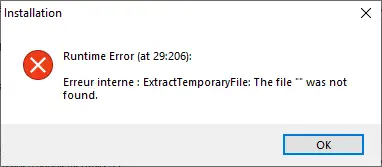
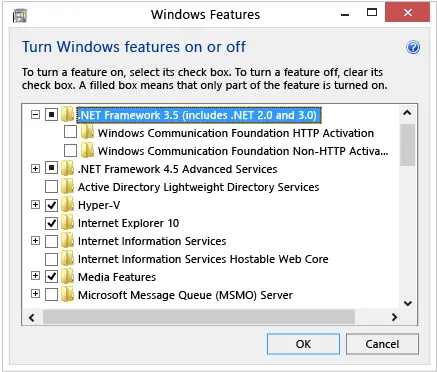
To solve the problem, press the Windows key on your keyboard, type "Windows Features", and press Enter. The Turn Windows features on or off dialog box appears. Select the .NET Framework 3.5 (includes . NET 2.0 and 3.0) check box, and select OK.
6. Installation of an update
Installing an update is as easy as installing a wordlist for the first time. But the new list will replace your old one, so if you had added some words to the list, or if you had corrected some entries, everything will be lost. If you want to avoid that, please contact us and tell us what language and how many words (approximately) are involved. We will then give you further instructions.
7. Uninstallation of the dictionary
To remove Freelang dictionary, go to Start menu, Control Panel, Programs and Features. Find the line corresponding to Freelang and click Remove button.
8. Before contacting us...
Feel free to contact us if you have any questions, just make sure you have read this page, as well as the FAQ (answers to frequently asked questions).
If you have a problem with the dictionary, please describe it precisely. Tell us what version of Windows you are using, what language list you are trying to install and how you have done so far. The more precise the description is, the sooner you will get an answer. Please also bear in mind that Freelang is a non profit website, and that we reply to the many emails we receive during our free time.
Thank you for your understanding!